 ShiftTable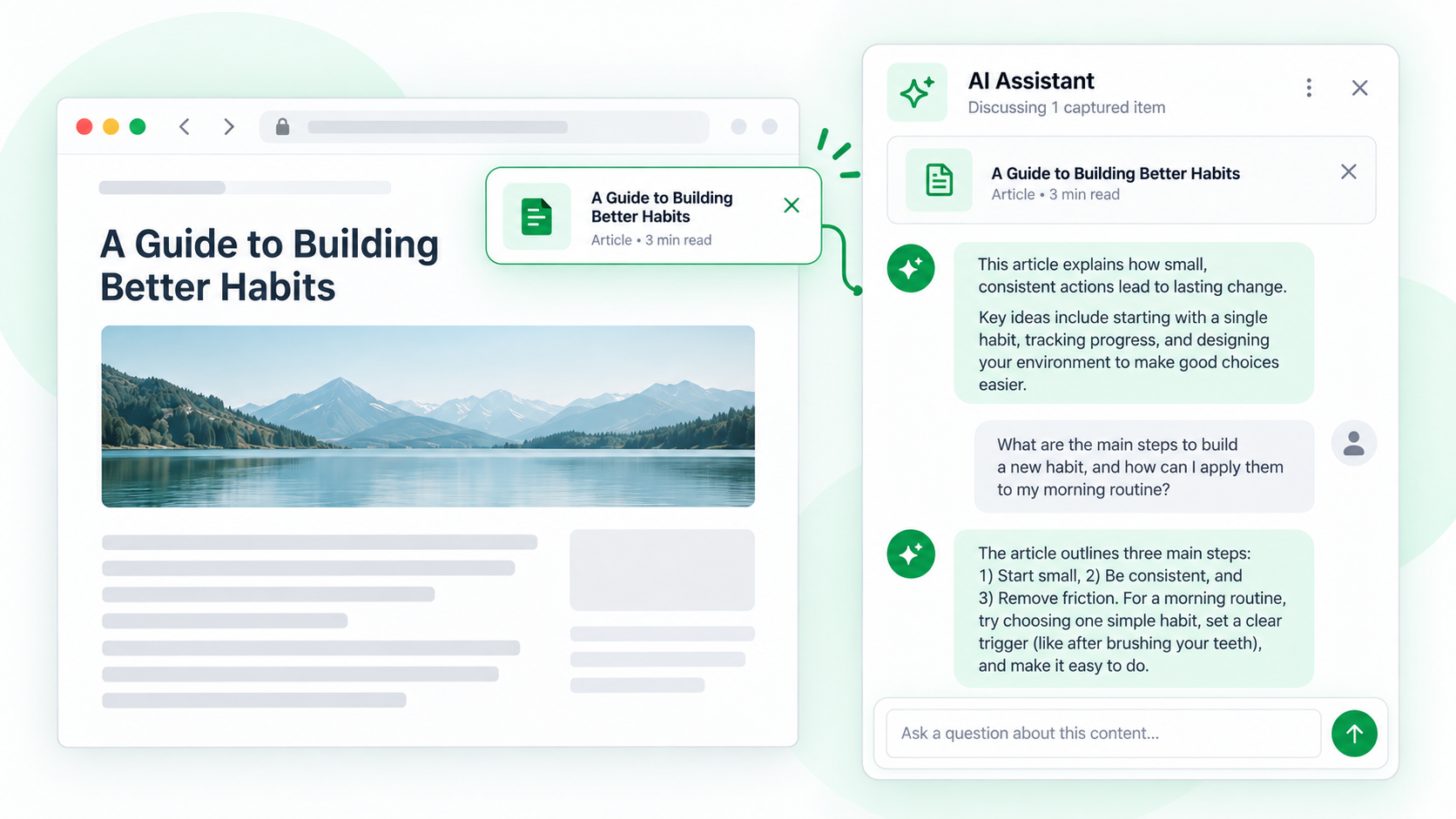
The sidebar is most useful when the conversation has a clear attachment. Open it with Shift + A, then capture the resource you want to discuss rather than asking AI to infer what is merely visible on the page.
Start a grounded discussion
- Open the sidebar with Shift + A and confirm which AI provider is active.
- Hover over an article, table, image, or code block and press Shift + F. Check the highlight boundary.
- Press A to attach the selected resource. Wait for the attachment to appear before asking the first question.
- Match the question to the resource: ask for a table’s anomalies, an article’s argument, a code block’s assumptions, or an image’s visible details.
- In follow-ups, name the section or column you mean. Verify important claims against the page.
A useful mental model
Shift + A opens the conversation; Shift + F identifies the resource; A sends that resource. Opening the sidebar alone does not attach the page.
Common questions
AI answers about the wrong content
The capture may include a nearby card or an old attachment may still be in the conversation. Check the highlight and start a fresh conversation when the context is ambiguous.
Can I mix resources?
Yes, but label them in your question. Explain which table, article, or code sample should be compared, and avoid assuming that similar-looking items have the same meaning.
What should not be sent?
Remove credentials, private identifiers, and unnecessary confidential text. The selected provider receives the resource you attach.
Try it on your next table.
Install ShiftTable, refresh your source page, and press Shift + F to begin.
Add to Chrome