 ShiftTable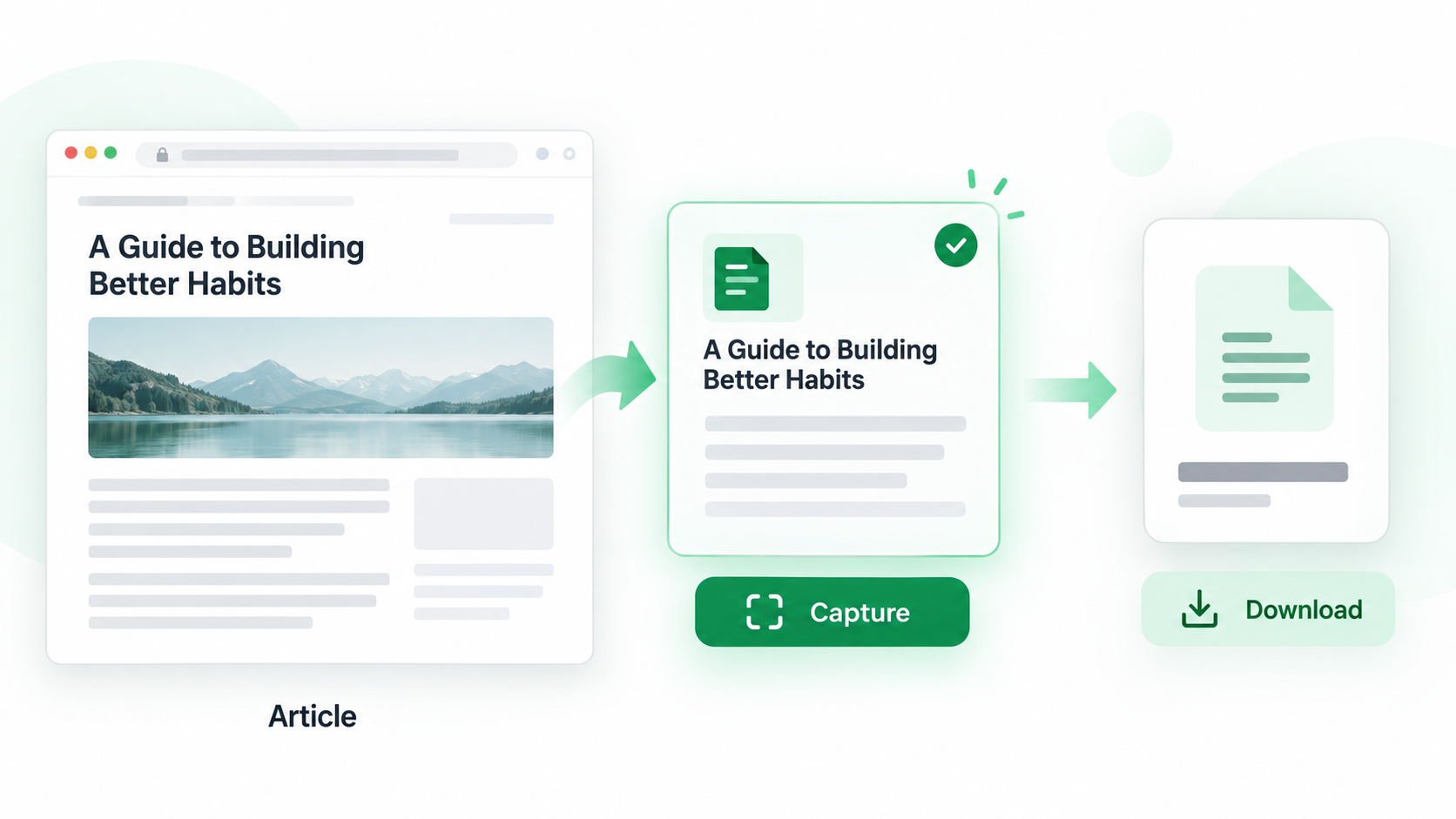
Article pages often mix the body with breadcrumbs, related links, comments, and newsletter prompts. A useful download begins by selecting the reading content, not by treating the whole page as one document.
Capture a clean article
- Open the article and wait for lazy-loaded paragraphs, code examples, and images to finish appearing.
- Hover over the main article body and press Shift + F. Check that the highlight starts at the title or intended introduction and ends before recommendations or comments.
- Use the copy or download action. Review the text, filename, source URL, and whether headings and paragraph breaks survived.
- If the article continues across pages, capture each part separately and keep the URLs or page numbers with the files.
- Compare the beginning, a middle section, and the conclusion with the browser before quoting or sharing the result.
What should be excluded?
Menus, cookie notices, “read next” cards, comment threads, and repeated sticky headers are page furniture. Excluding them makes the downloaded text easier to search and reduces the chance of mistaking a recommendation for part of the article.
Common questions
Why is the download missing paragraphs?
The text may load only after scrolling, or the site may split the article into pages. Finish loading the body and capture the missing section again.
Why did images or formatting disappear?
A text download preserves readable content, not every visual layout detail. Keep the source URL when images, captions, links, or typography matter.
How should I use the file?
Treat it as a working copy. Verify the source and capture date before publication, citation, or sending the text to an AI service.
Try it on your next table.
Install ShiftTable, refresh your source page, and press Shift + F to begin.
Add to Chrome