 ShiftTable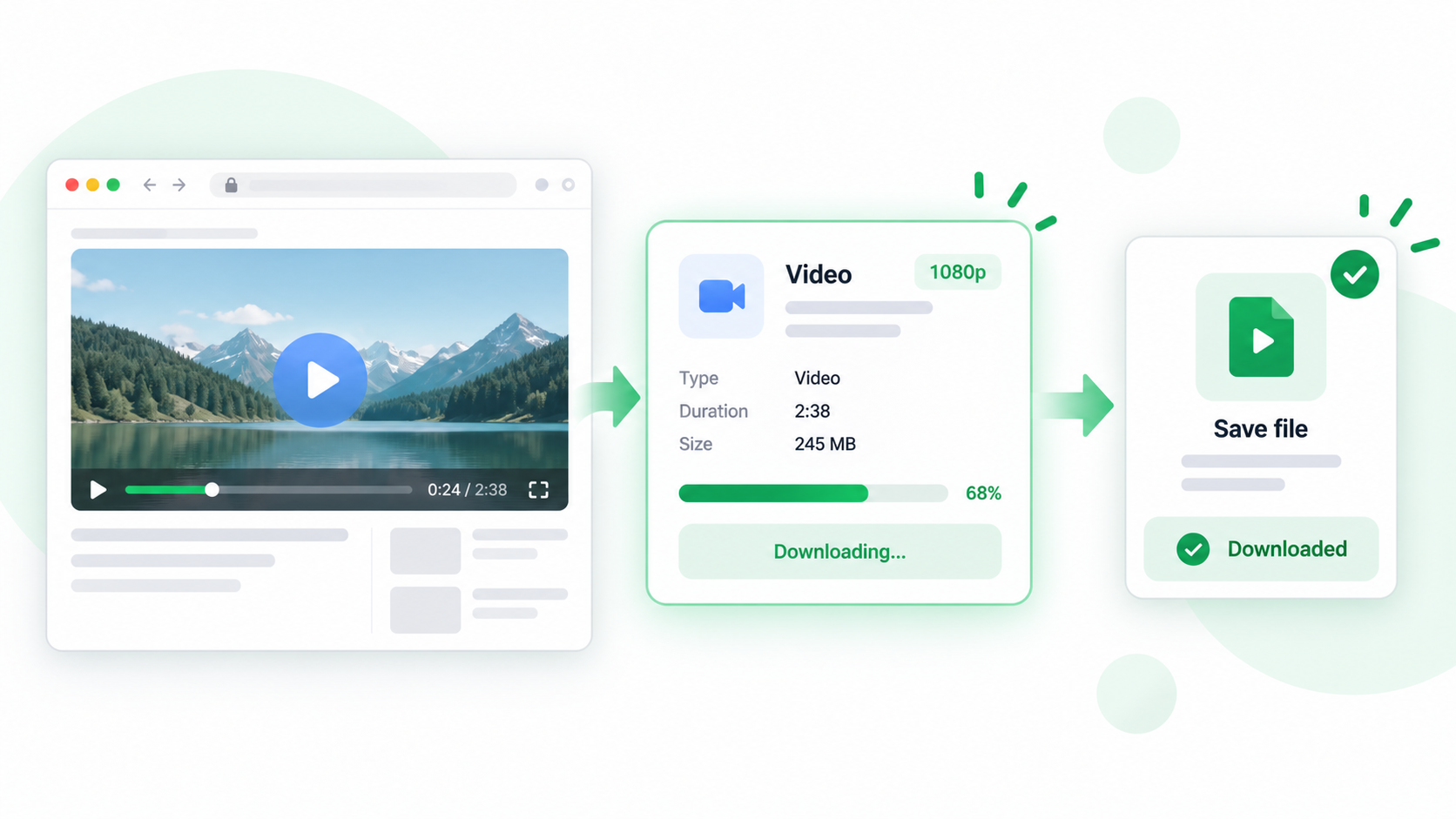
Video playback and video downloading are different operations. ShiftTable works best when the page exposes a direct HTTP or HTTPS media file; a player can still work when the underlying stream is segmented or protected.
Try a supported download
- Start playback and wait until the intended video resource is present. Avoid capturing an advertisement or poster image.
- Hover over the player and press Shift + F. Check that the highlight identifies the video rather than the surrounding card.
- Choose D to send a direct source to the browser download manager.
- Check the downloaded filename, extension, size, and source page. Play a short section before moving the file into a project.
- Stop if the source is protected, requires a session that cannot be transferred, or would require bypassing access controls.
What “supported” means
It means the browser exposes a downloadable media resource that the extension can hand to the download manager. It does not mean every player, subscription, or stream can be converted into a file.
Common questions
The video plays but download fails
It may use HLS, DASH, a blob URL, DRM, an expiring signed URL, or required request headers. Copy the source for reference or use the site’s permitted download option.
Why is the file only a few bytes?
The capture may have targeted a manifest, poster, or temporary response rather than the media file. Check the type and size before treating it as a video.
What should I respect?
Download only content you are authorized to save, and follow the site’s terms and copyright rules.
Try it on your next table.
Install ShiftTable, refresh your source page, and press Shift + F to begin.
Add to Chrome