 ShiftTable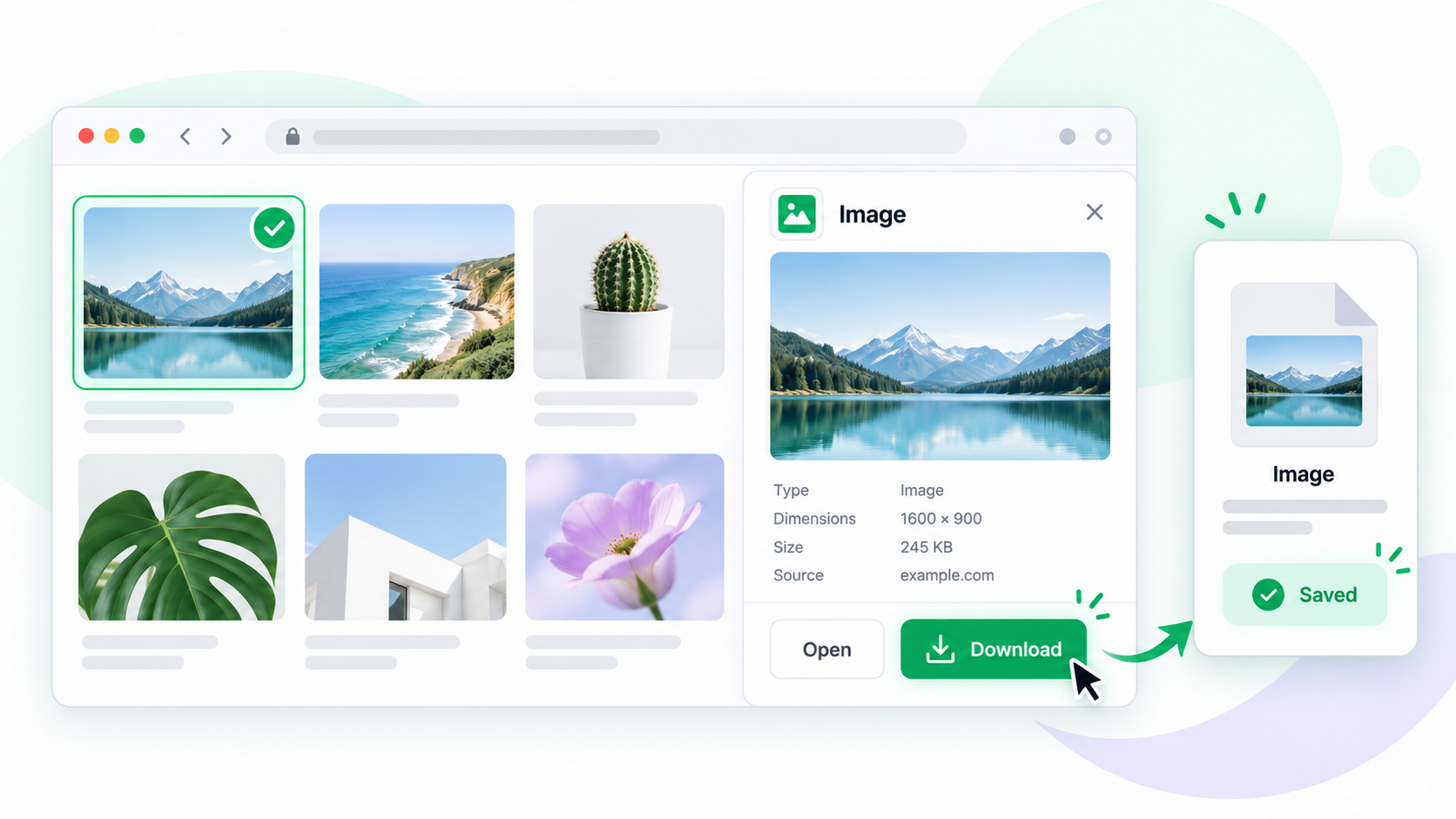
Use Download when you need an image file rather than a clipboard result or a source URL. The important step is choosing the image itself: a card, caption, lazy-loading placeholder, or background layer can produce a different result.
Download an image
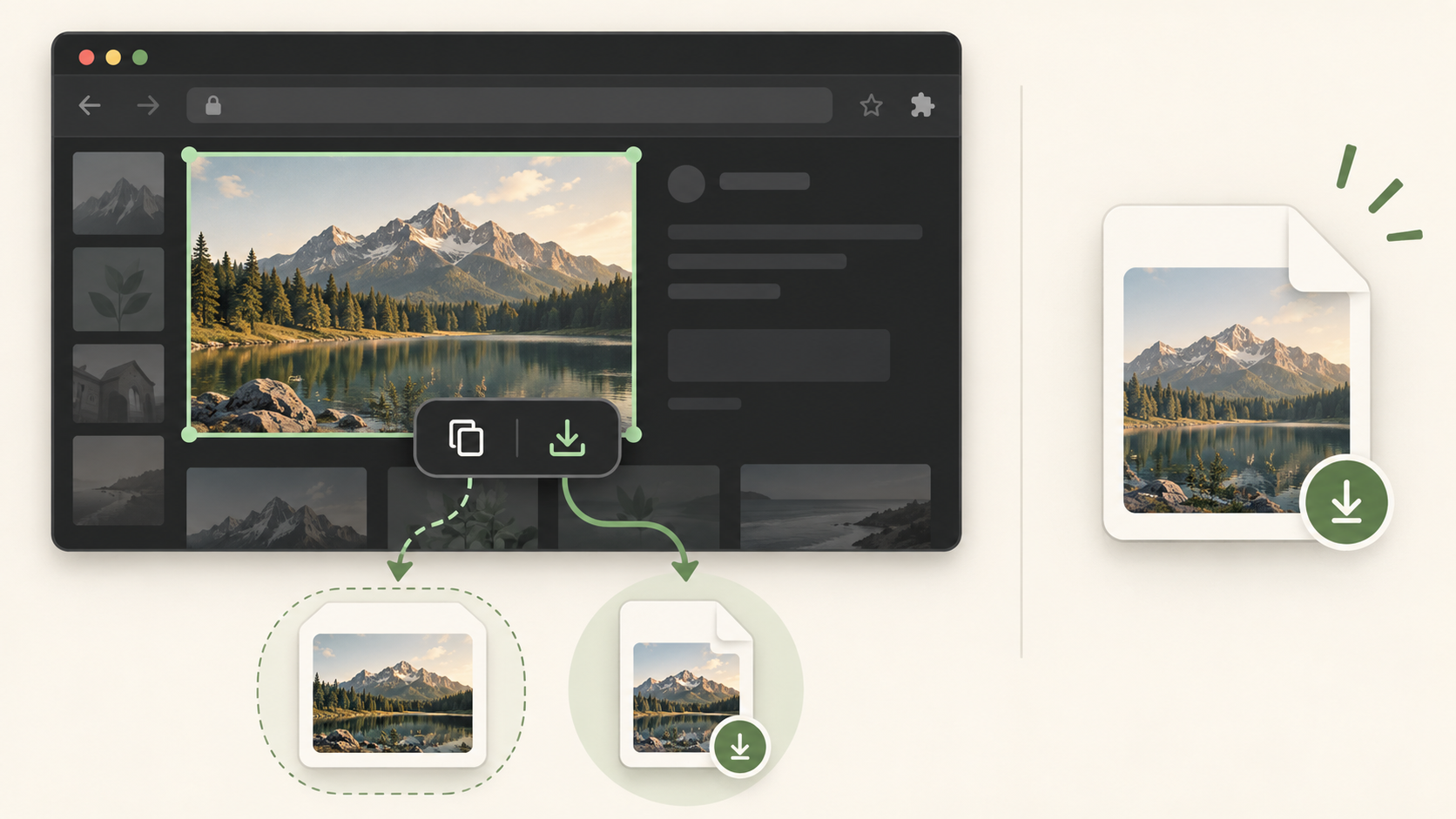
- Refresh the page and hover over the visible image.
- Press Shift + F and confirm the highlighted boundary and preview.
- Choose Download or press D. Wait for the browser download to complete before leaving the page.
- Check the extension, dimensions, file size, and source URL. If the image is incomplete, capture the loaded image again.
Supported does not mean reusable
The browser may be able to fetch an image while the page owner still restricts reuse. Keep attribution and licensing information. Cross-origin restrictions, protected URLs, and unsupported formats can prevent a download or return a smaller representation.
Common questions
Why is the downloaded image blank or small?
The page may have selected a placeholder, thumbnail, CSS background, or an image that had not finished loading. Refresh, wait, and inspect the boundary before trying again.
What to remember
Download the actual image resource, not the surrounding card. Verify the resulting file and keep the source.
Try it on your next table.
Install ShiftTable, refresh your source page, and press Shift + F to begin.
Add to Chrome