 ShiftTable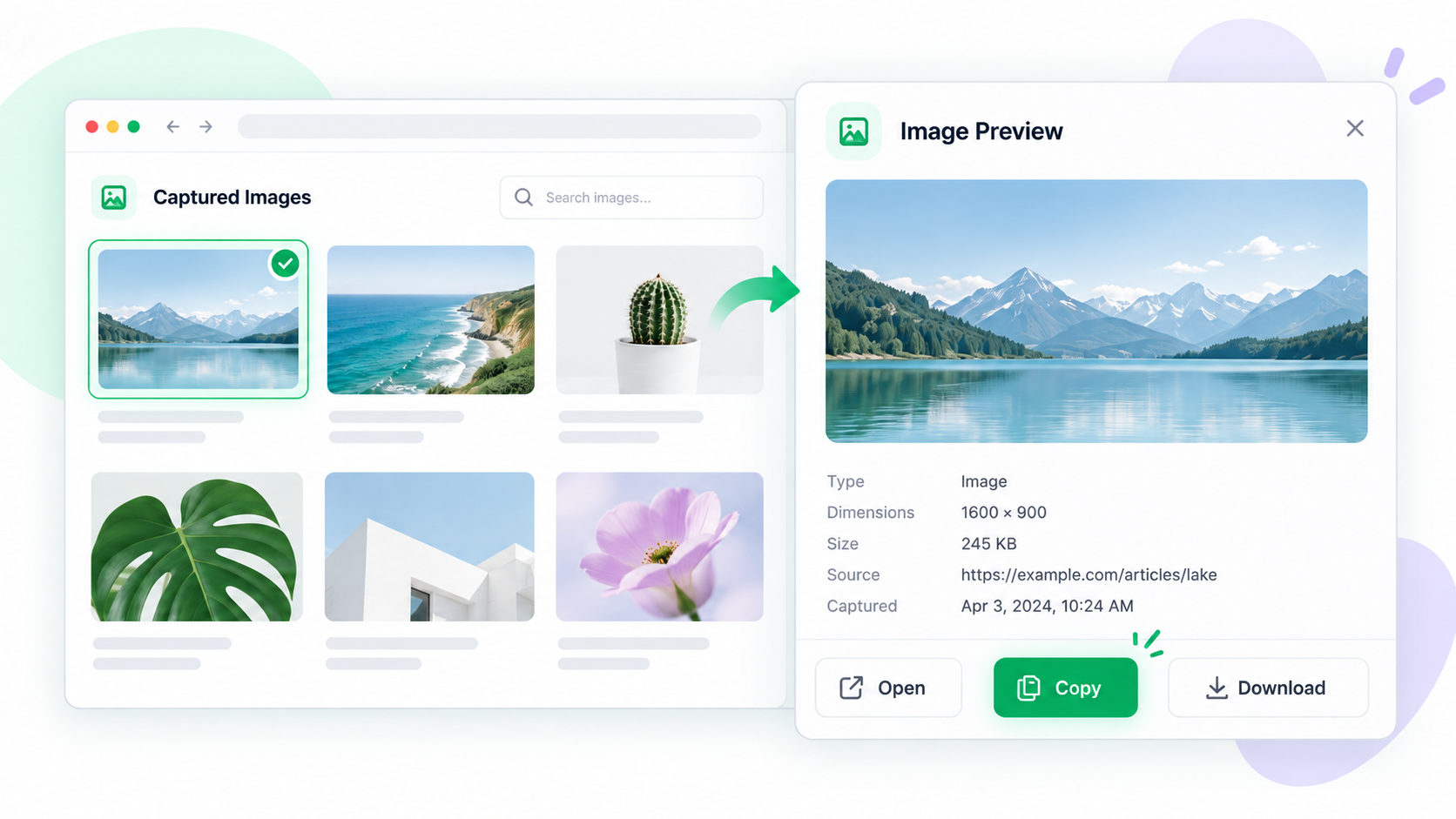
Previewing an image is a quality check, not an edit to the original page. It helps you catch a thumbnail, a decorative icon, or a cropped responsive image before that file becomes part of a report or design reference.
Inspect the capture
- Wait for the image to load at the size you need. Lazy-loaded galleries may show a placeholder first.
- Hover over the image and press Shift + F. Confirm that the highlight surrounds the image rather than its caption, card, or surrounding container.
- Open the preview action and inspect the visible content, proportions, and clarity. Compare important text or labels with the source page.
- Choose copy, download, or stash only after confirming the correct asset. Keep the source URL when attribution or later verification matters.
What preview can reveal
It can expose an unexpectedly small thumbnail, a transparent background, a cropped object-fit version, or a low-resolution responsive source. A preview does not reconstruct pixels that the page never delivered.
Common questions
Why is the image blurry?
The page may be serving a thumbnail or a scaled-down source. Look for the full-size image on the page and capture that resource instead of enlarging the preview.
Why did I capture the card instead of the image?
Move the pointer directly over the bitmap and wait for the resource boundary to change. Capture again if the card highlight includes text or buttons.
What should I record?
For work that will be shared, note the source URL, capture date, and whether the image was downloaded or merely previewed.
Try it on your next table.
Install ShiftTable, refresh your source page, and press Shift + F to begin.
Add to Chrome