 ShiftTable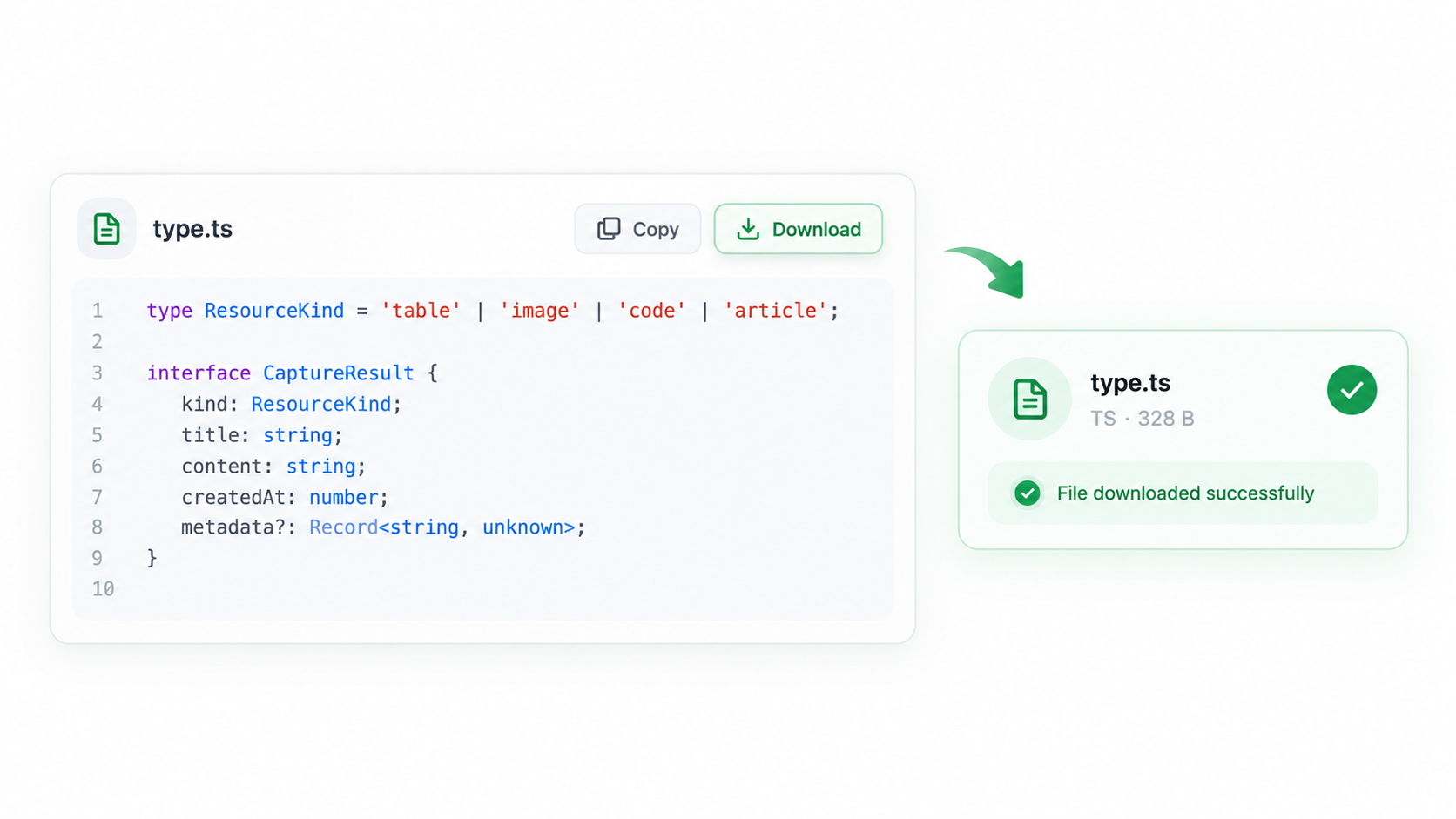
Code examples are easy to damage when copied with their line numbers, “copy” buttons, or surrounding explanation. Capture the code block itself, then decide whether a clipboard paste or a downloaded file better fits your next step.
Preserve the code block
- Wait for syntax highlighting and lazy-loaded lines to finish rendering.
- Hover over the code block and press Shift + F. Check that line numbers, captions, and prose outside the block are not included.
- Press C for a quick paste or D for a file. Review indentation, tabs, quotes, brackets, and special characters in the result.
- Keep the displayed language and source URL with the snippet when syntax or licensing matters.
- Run or publish the code only after comparing its first and last lines with the page.
Copy versus download
Copy is convenient for a small example going into an editor or issue. Download is safer for a long block where line endings and a filename matter. Neither action proves that the example is complete or safe to run.
Common questions
Why are line numbers in my code?
The page may render them as selectable text. Narrow the capture to the code content or remove the numbering before use.
Why is the first line missing?
Sticky headers, collapsed sections, and lazy rendering can change the capture boundary. Expand the block, scroll through it, and capture again.
What should I verify before execution?
Check imports, dependencies, credentials, network calls, and placeholders. Treat copied code as untrusted input until reviewed.
Try it on your next table.
Install ShiftTable, refresh your source page, and press Shift + F to begin.
Add to Chrome