 ShiftTable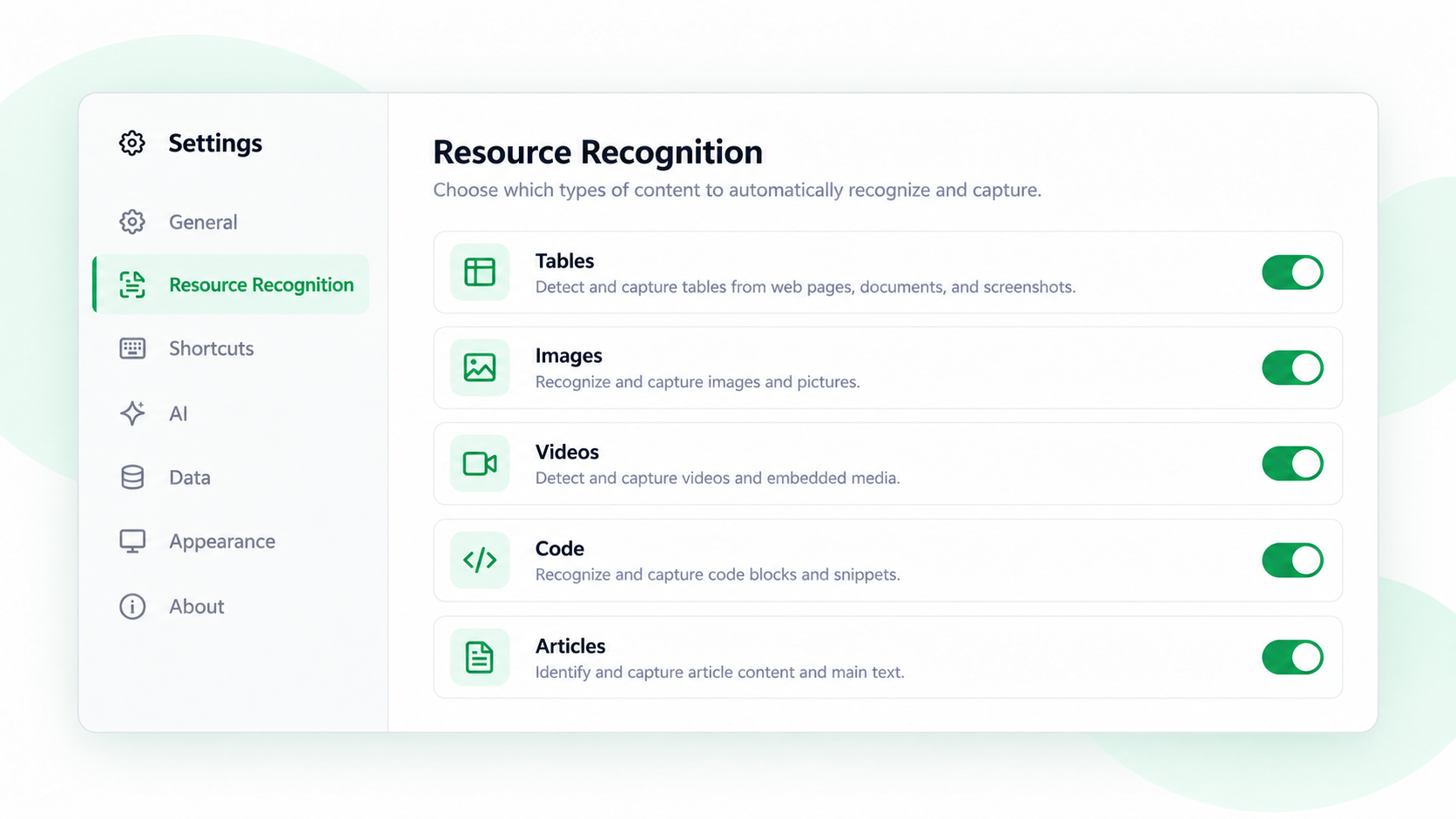
Recognition settings decide which kinds of page content ShiftTable is allowed to detect. They are separate from shortcuts and toolbar actions: a resource can be enabled but still have its copy, download, or AI action hidden.
Choose recognition types
- Open Settings and expand Recognition. The available switches cover tables, videos, images, code, articles, and CSS background images.
- Keep only the types useful for the current browsing workflow. Disabling a type prevents its candidate from appearing in the floating resource toolbar.
- For tables, open the table-recognition details if you need to control HTML tables, ARIA/div grids, framework layouts, or AutoRM separately.
- Refresh open pages after changing settings. Move over a matching resource and press Shift + F to verify the expected type appears.
Recognition is not an action permission
Turning on articles does not automatically send articles to AI, and enabling images does not force a download. Recognition makes a candidate available; the toolbar settings and your selected action decide what happens next.
Common questions
Why does a resource type not appear?
Check its recognition switch first, then refresh the page. For tables, the page structure may not match the enabled recognizers; try the table details or move the pointer to the actual data region.
What to remember
Use recognition settings to reduce noise and improve control. Change one type at a time, refresh the page, and verify the toolbar before assuming the resource is unsupported.
Try it on your next table.
Install ShiftTable, refresh your source page, and press Shift + F to begin.
Add to Chrome