 ShiftTable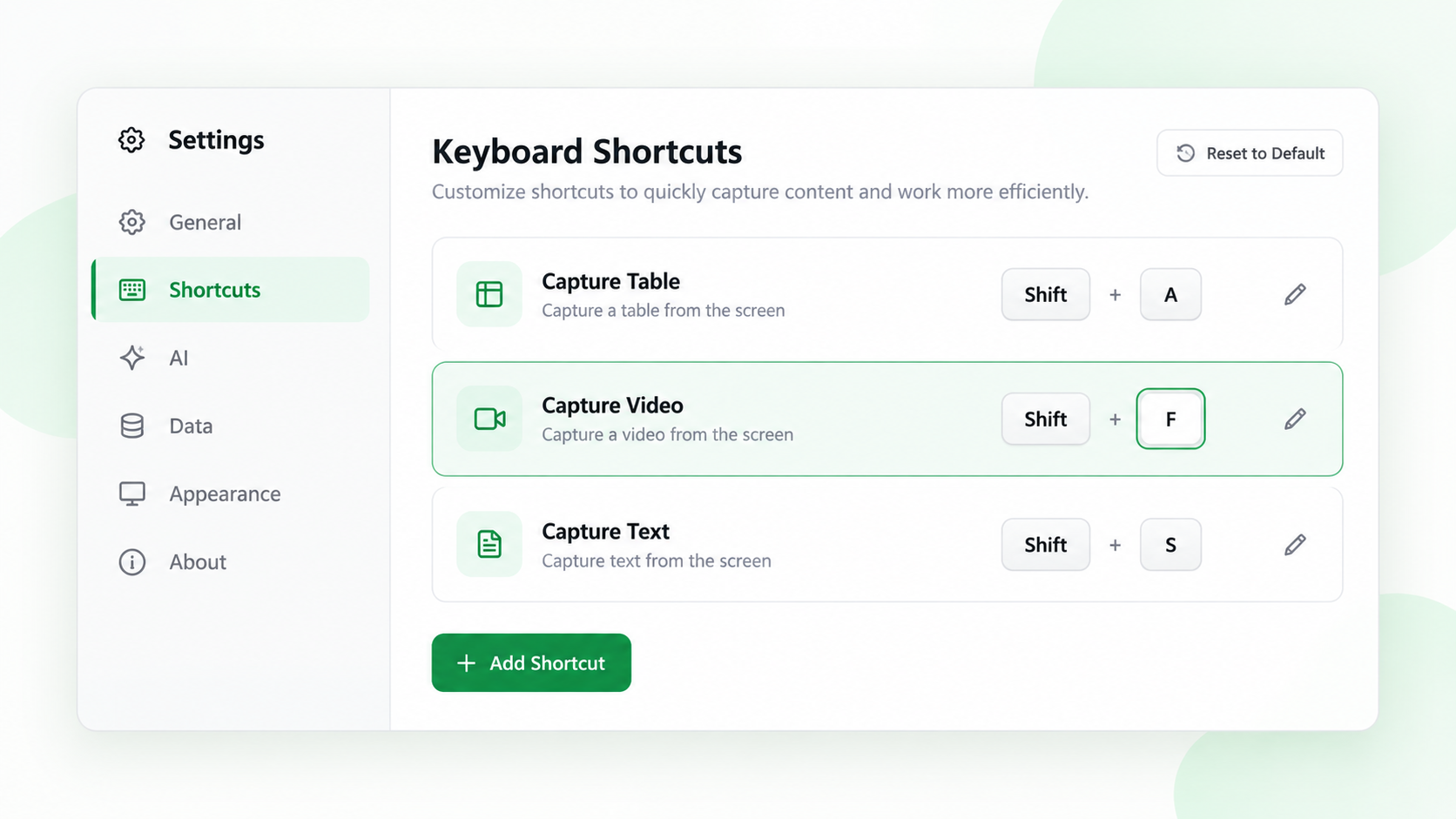
ShiftTable supports enabling or disabling fixed shortcuts; it does not currently let you record arbitrary key combinations. The three entries are Shift + A for the AI sidebar, Shift + T for the table flow, and Shift + F for resource capture.
Change shortcut settings
- Open ShiftTable Settings and select Shortcuts.
- Enable or disable the fixed shortcut you need. These key combinations cannot be renamed.
- Check the Recognition and Toolbar sections separately. Disabling a recognition type or toolbar action changes what appears after capture; it is not the same as disabling a keyboard shortcut.
- Return to a page and refresh it after changing settings. Then test the shortcut over the intended resource and verify that the expected launcher or toolbar appears.
Avoiding conflicts
Browser and web-app shortcuts can run at the same time as an extension shortcut. Test the combination on a low-risk page, especially in editors, spreadsheets, and video players. If a page owns the same command, disable the ShiftTable shortcut you do not need, then use the launcher or the remaining actions.
Common questions
Why did a change not take effect?
The open page may still have an older content script. Refresh the page after changing settings, and check that the relevant recognition type and toolbar action are enabled.
What to remember
You can enable or disable fixed shortcuts, but you cannot rename them or add arbitrary new combinations. In the table flow, T opens Spreadsheet and S/A/C/D stash, send to AI, copy, or download; in the resource flow, F opens the preview or Spreadsheet and S/A/C/D run the corresponding actions.
Try it on your next table.
Install ShiftTable, refresh your source page, and press Shift + F to begin.
Add to Chrome