 ShiftTable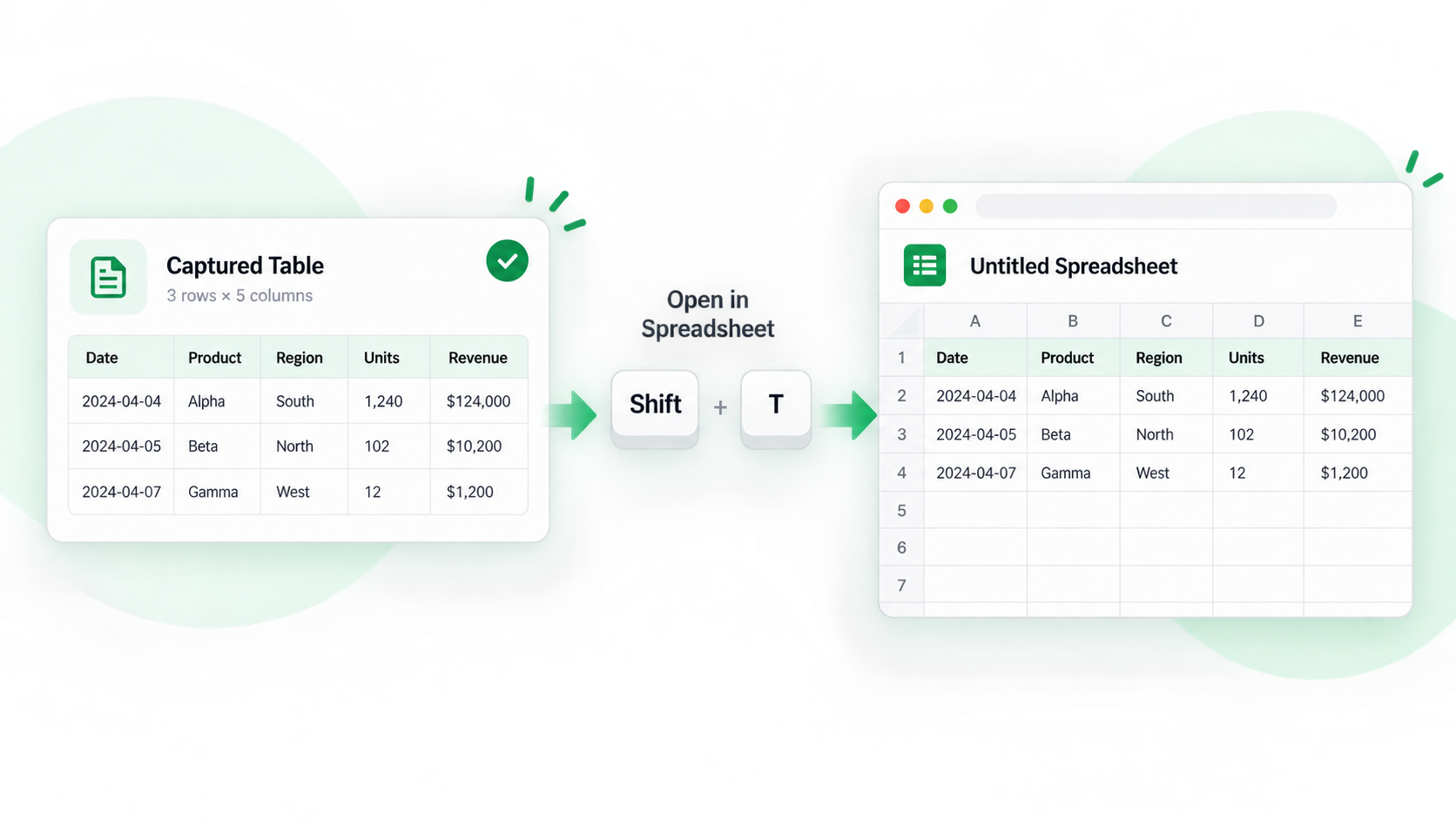
The Spreadsheet shortcut is useful when the web page is only the source and the real work starts with sorting, filtering, or correcting the captured cells. It also gives you a checkpoint before you copy or export anything.
Open the table safely
- Wait for the page to finish rendering, including rows loaded after scrolling or pressing “load more”.
- Place the pointer over the table and press Shift + F. Check that the highlight begins at the intended header and does not include nearby navigation.
- Press F to open the selected table in Spreadsheet. If the range is wrong, close it and capture again instead of repairing a large mistake later.
- Inside Spreadsheet, inspect headers, row count, dates, percentages, and identifiers. Then search, filter, sort, or edit the cells you actually need.
- Copy the cleaned selection or download XLSX after comparing the result with the source page.
When this shortcut is better than direct copy
Use it for long tables, dynamic results, repeated headers, or cells whose alignment matters. Direct copy is quicker for a few stable cells; Spreadsheet is safer when the captured structure needs inspection.
Common questions
Why did the wrong table open?
The pointer may have been over a nested table, card, or nearby resource. Move it to the table body, wait for the highlight, and verify the boundary before pressing F.
Why are rows missing?
Virtualized tables may render only visible rows. Load more results and scroll through the list before capturing again.
What should I do before exporting?
Check the first, middle, and last records, then preserve the source URL and capture date with the workbook.
Try it on your next table.
Install ShiftTable, refresh your source page, and press Shift + F to begin.
Add to Chrome