 ShiftTable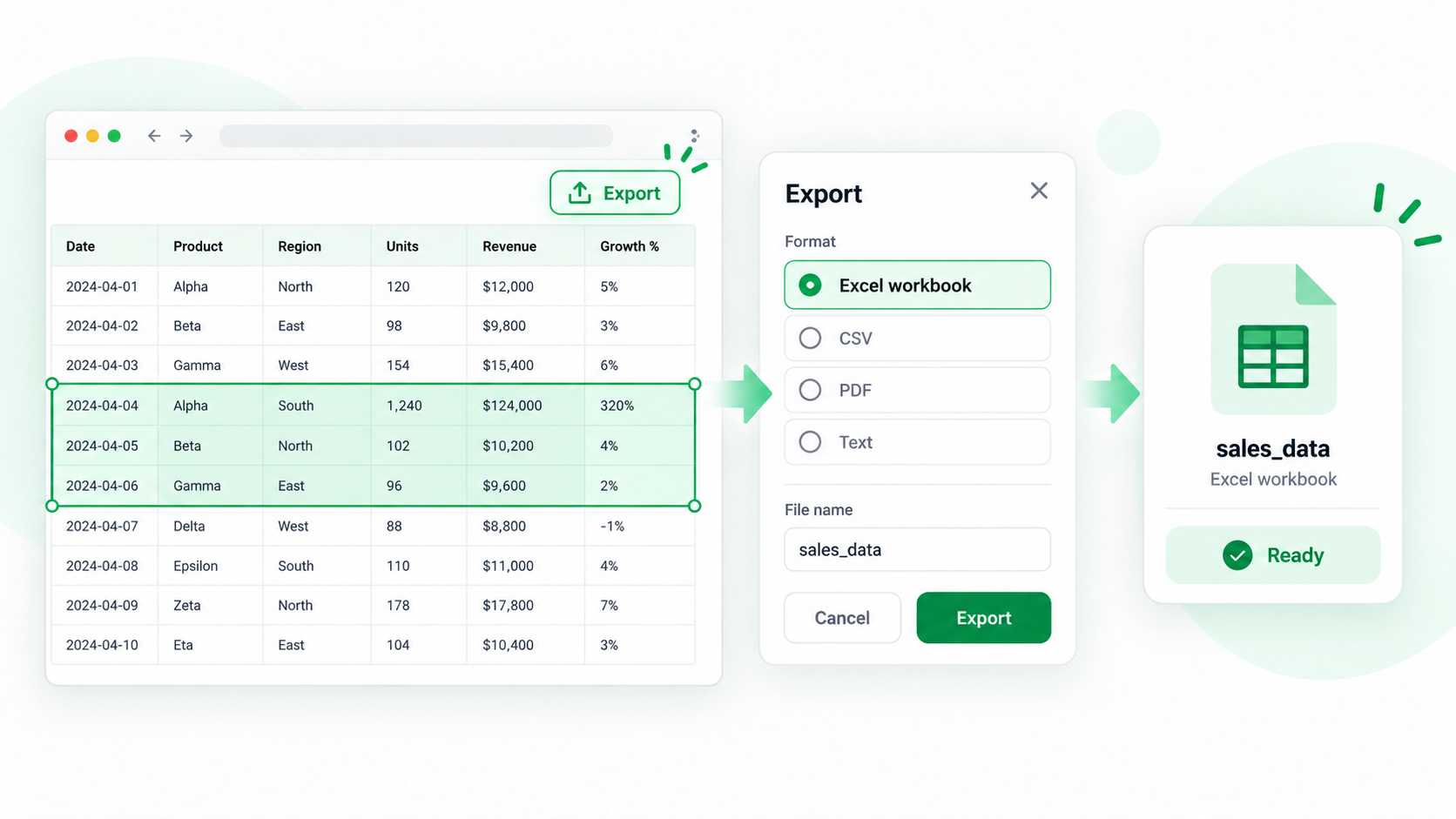
An export is only useful when the spreadsheet still explains where its values came from. ShiftTable lets you capture the table, inspect it in Spreadsheet, and download the corrected result as XLSX instead of pasting a visually similar but structurally broken copy.
A reliable export workflow
- Open the page and wait for the table to finish rendering. Expand collapsed rows or load the relevant page before capturing it.
- Move the pointer over the table and press Shift + F. Confirm that the highlight includes the intended header, body rows, and useful totals.
- Press F to open the capture in Spreadsheet. Check multi-line headers, percentages, dates, currency columns, and identifiers with leading zeros.
- Remove accidental surrounding text, then filter, sort, or correct obvious formatting issues. Keep the source URL and capture date when the table will be shared.
- Download the workbook as XLSX. Open it once and compare its first and last rows, column count, and number formats with the captured table.
Why open Spreadsheet first?
Downloading immediately is fine for a clean HTML table. Spreadsheet is safer when the page contains repeated navigation rows, a sticky header, a “load more” boundary, or numbers shown as plain text. It gives you a visible checkpoint before the file leaves the browser.
Checks worth making before delivery
- Confirm that the header row was not captured twice.
- Compare the row count with the visible result count, especially on paginated reports.
- Make sure a leading zero, minus sign, or decimal separator was not changed.
- Keep the original page and capture date with the workbook when the data may change.
Common questions
Why does Excel show fewer rows than the page?
The page may have captured only the currently rendered rows. Load more results, scroll through virtualized content, and capture again. A paginated report may require several captures; merge them only after checking that their headers and sort order match.
Why are dates or amounts formatted unexpectedly?
Web pages often store values as display text, while Excel guesses a type when opening XLSX. Inspect the column in Spreadsheet before export and preserve identifiers as text when their leading zeros matter.
Can I export only selected rows?
Yes. Filter or remove rows in Spreadsheet, then export the cleaned view. If you only need a few cells, use the copy action instead.
What is the final rule?
Treat XLSX as a deliverable, not as proof that the capture was correct: verify the range, structure, values, and source after opening the downloaded file.
Try it on your next table.
Install ShiftTable, refresh your source page, and press Shift + F to begin.
Add to Chrome