 ShiftTable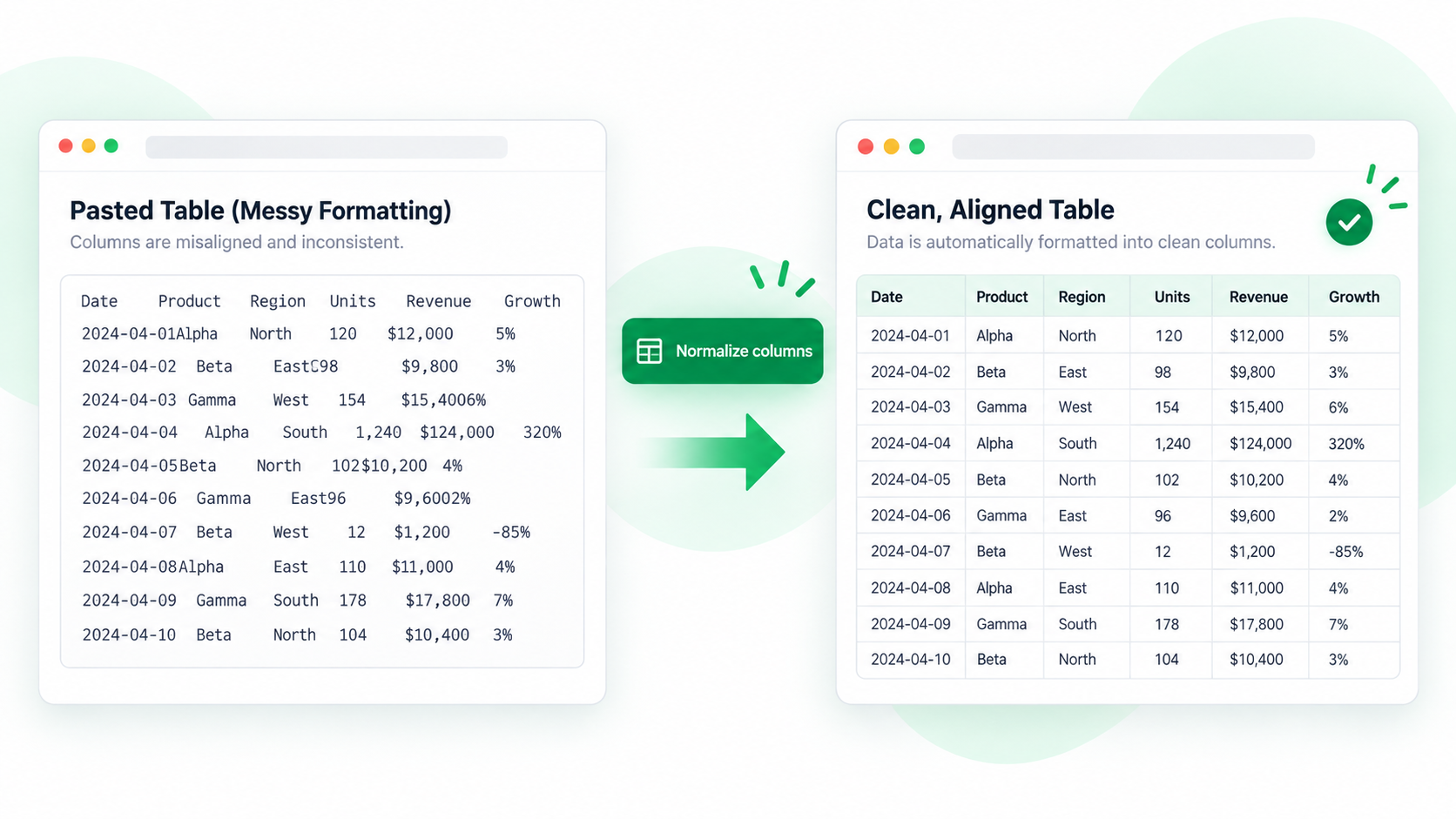
Browser copy often follows the visual layout, not the table’s logical cells. A page with merged headers, wrapped labels, or hidden responsive columns can therefore paste into Excel with shifted values. ShiftTable gives you a structured capture to inspect before copying.
Repair the copy step by step
- Let the table finish loading and expand any rows that are part of the data.
- Hover over the table and press Shift + F. Check that the highlight starts at the real header and ends at the intended last row.
- Press F to inspect the result in Spreadsheet. Look for one-column pastes, duplicated headers, blank spacer rows, and values that moved under the wrong heading.
- Remove presentation-only rows or select the needed cells, then press C to copy the cleaned selection.
- Paste into a blank sheet and compare one record near the top, one in the middle, and the last record with the source page.
Where formatting usually breaks
Merged cells can make a title appear to span several columns while carrying only one value. Wrapped text can create visual lines inside one cell. Responsive tables may hide columns on narrow screens. Treat these as structural questions, not as a font or border problem.
Common questions
Why did everything paste into one column?
The browser may have exposed the table as rendered text rather than cells. Open the capture in Spreadsheet and copy from the structured result; if the page is not a real table, capture a narrower range and verify each separator.
Why are headers repeated in the middle?
Many reports repeat a sticky header while scrolling. Exclude the repeated row before copying, or use Spreadsheet to remove it after capture.
When should I download instead?
Use XLSX when you need a reusable workbook or need to preserve a larger range. Use copy when the destination is a document, ticket, or small set of selected cells.
Try it on your next table.
Install ShiftTable, refresh your source page, and press Shift + F to begin.
Add to Chrome