 ShiftTable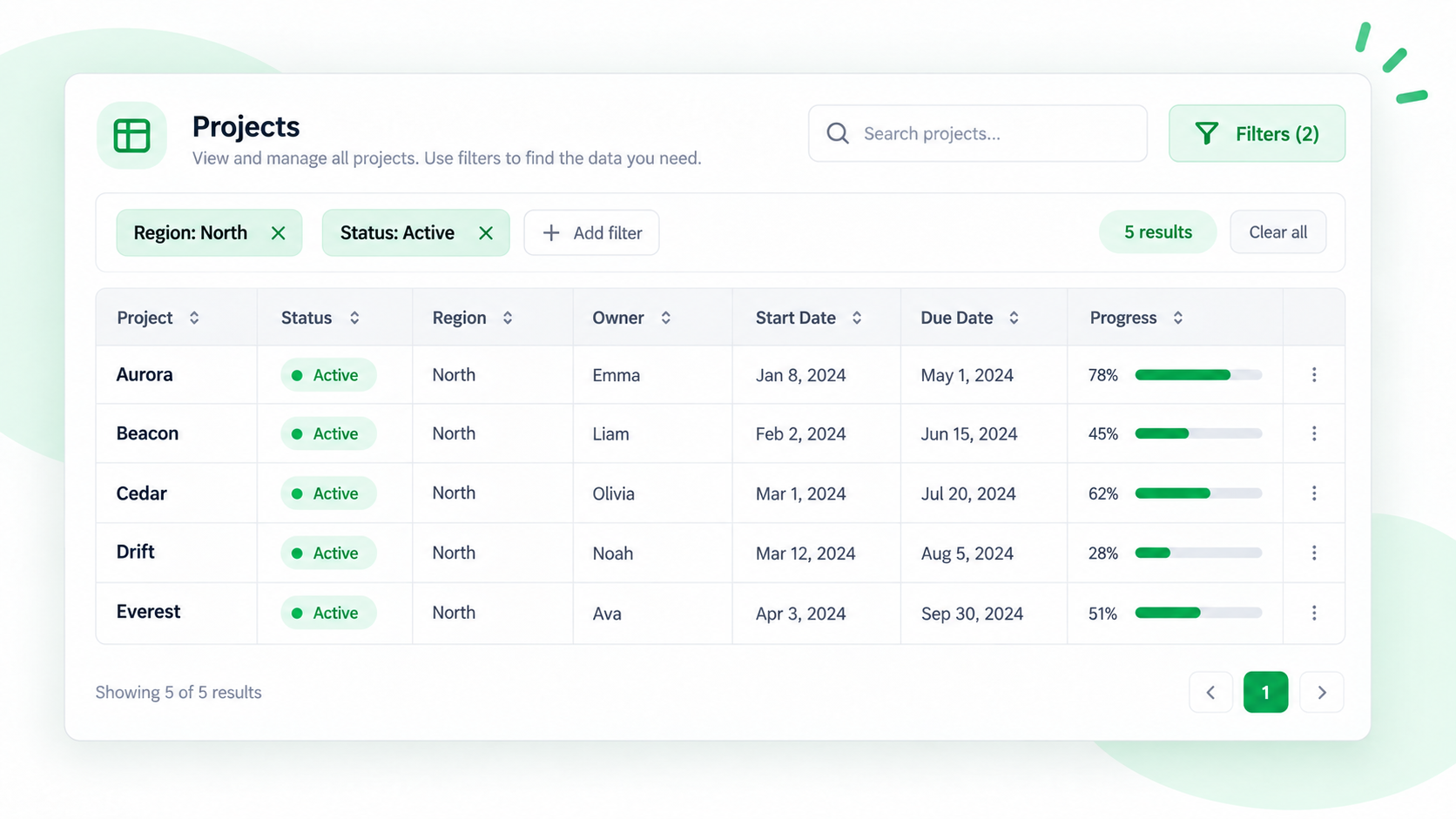
Filtering is useful when a captured table contains more records than the next task needs. Work in Spreadsheet so you can search, sort, and inspect the result before copying or exporting it.
Build a reliable subset
- Recognize the table, check its boundary, and press F to open Spreadsheet.
- Search for a value first when you know an exact name, then apply a column filter for categories, ranges, or statuses.
- Sort only after confirming which column is active. Check whether blank values, text numbers, and date formats are being treated as expected.
- Select a continuous result range and use C or export only after checking the visible row count and the first and last records.
Filtering does not delete data
Hidden rows remain part of the captured table. If another person needs only the filtered subset, copy or export the prepared range and label the filter conditions in the destination file.
Common questions
Why did the export include records I filtered out?
The export may have used the full capture rather than the selected visible range. Prepare a continuous selection and inspect the exported file before sharing it.
What to remember
Search finds; filters hide; sorting changes order. Treat the final copied range as a deliverable and validate it independently.
Try it on your next table.
Install ShiftTable, refresh your source page, and press Shift + F to begin.
Add to Chrome