 ShiftTable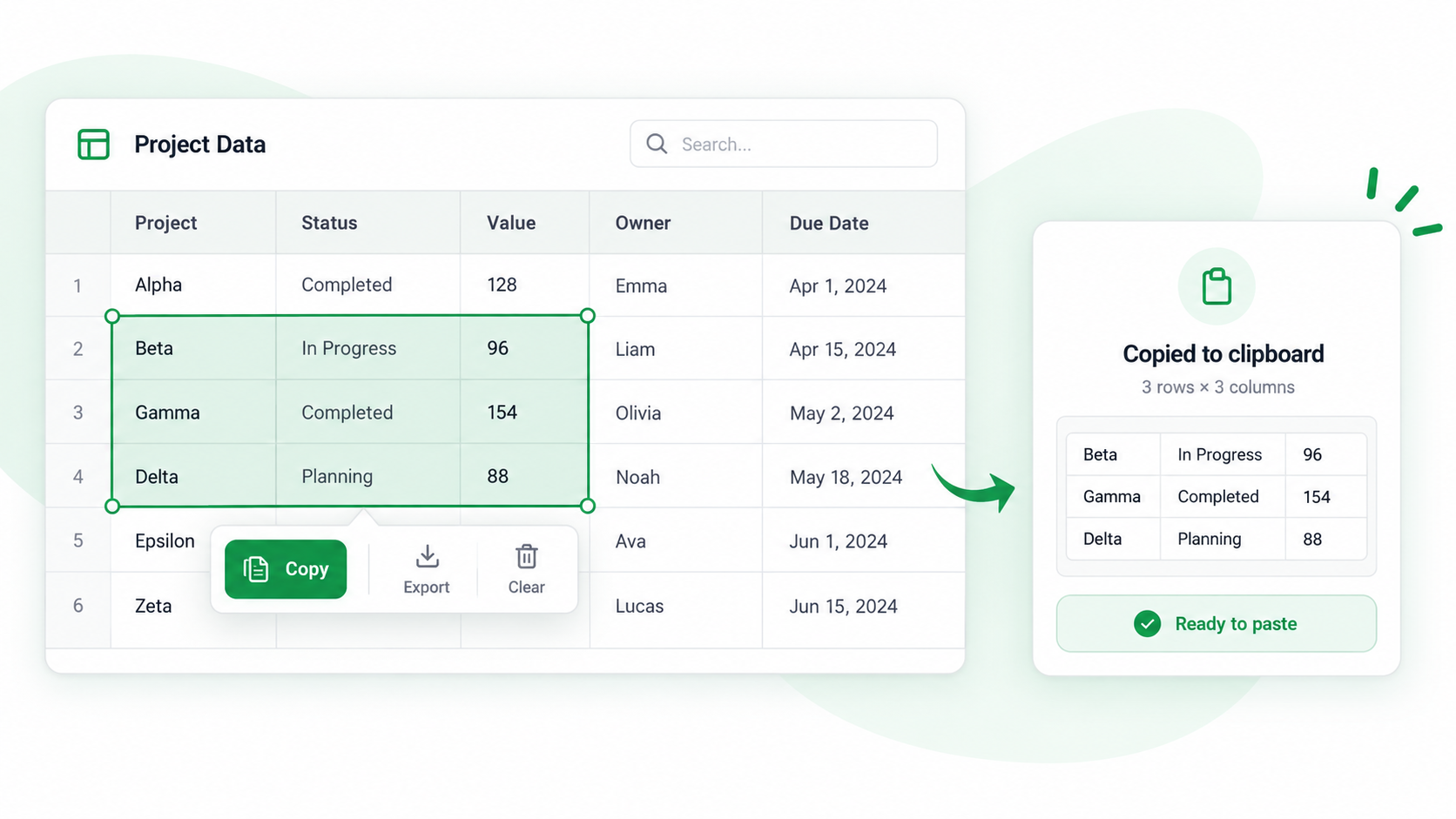
You do not need to copy an entire web table when you only need a few fields. Open the capture in Spreadsheet, select one continuous rectangle, and copy that range into the destination file.
Copy a focused range
- Recognize the table with Shift + F, check the header and last visible row, then press F to open Spreadsheet.
- Click the first cell of the range and extend the selection across the required rows and columns. Keep the header selected when the destination needs column names.
- Press C or use the copy action, then paste into the target sheet without immediately applying formatting.
- Compare the first row, last row, row count, and number formats with the captured table. Save the source URL alongside the extracted range.
Non-adjacent fields
A rectangular selection is safest for preserving row order. If you need columns that are separated by unrelated fields, copy each block separately and label the blocks before combining them. Copying a visually aligned region does not fix merged cells, hidden rows, or a malformed source table.
Common questions
Why did extra columns come along?
The selection may have included the surrounding rectangle. Narrow the first and last columns, then paste into a fresh area and compare the headers.
What to remember
Use a whole-table copy for speed and a rectangular selection for precision. Validate row order and headers before using the range in a report.
Try it on your next table.
Install ShiftTable, refresh your source page, and press Shift + F to begin.
Add to Chrome