 ShiftTable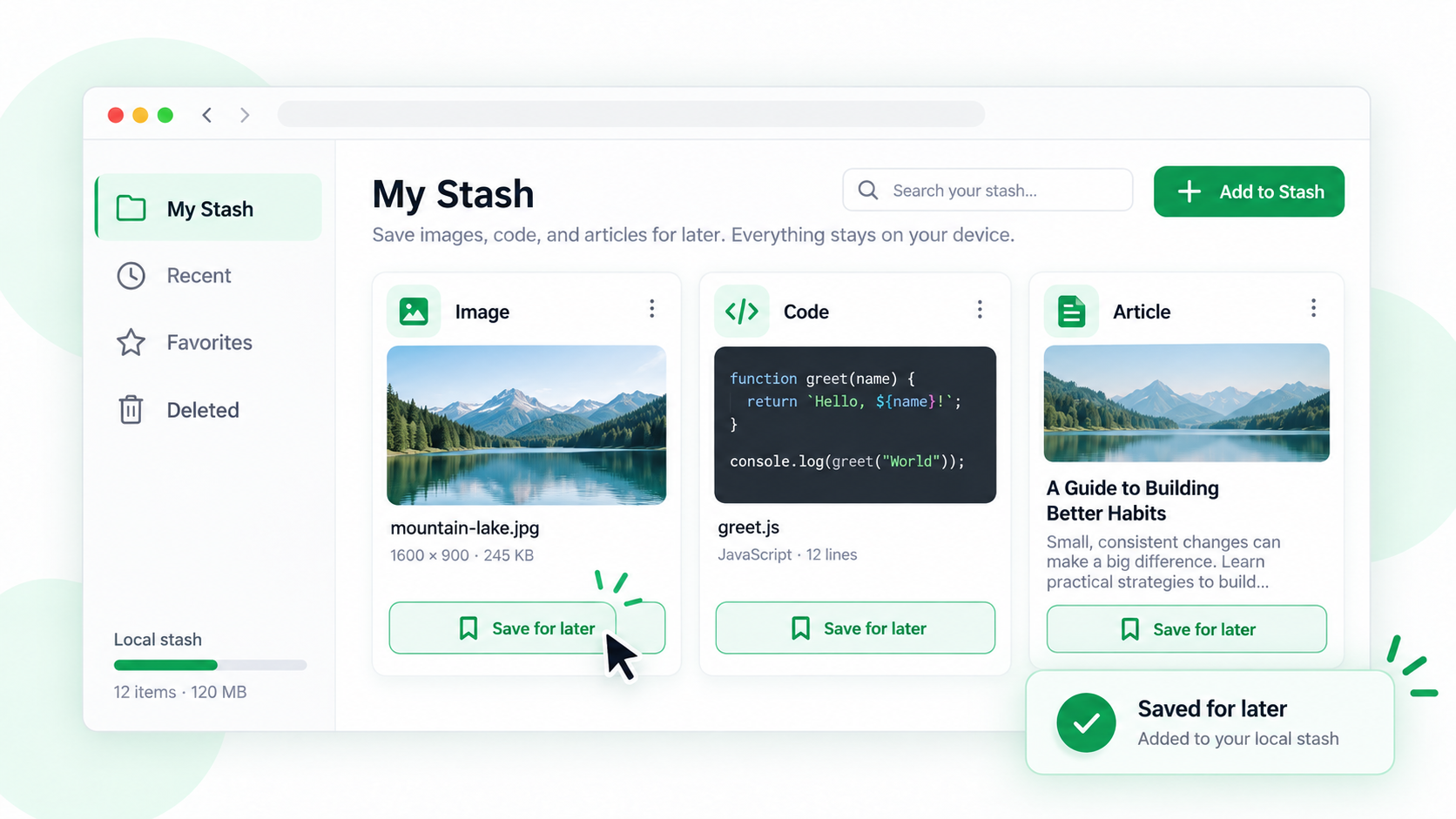
Use stash when an image, code block, or article is useful now but you are not ready to copy or download it. The resource is kept in ShiftTable’s local collection so a later capture can be sent to AI or downloaded with it; stash entries are not separate items in the history list.
Stash a resource
- Enable the resource types you plan to use in Settings. Local history is separate and only controls whether a recoverable capture record is saved.
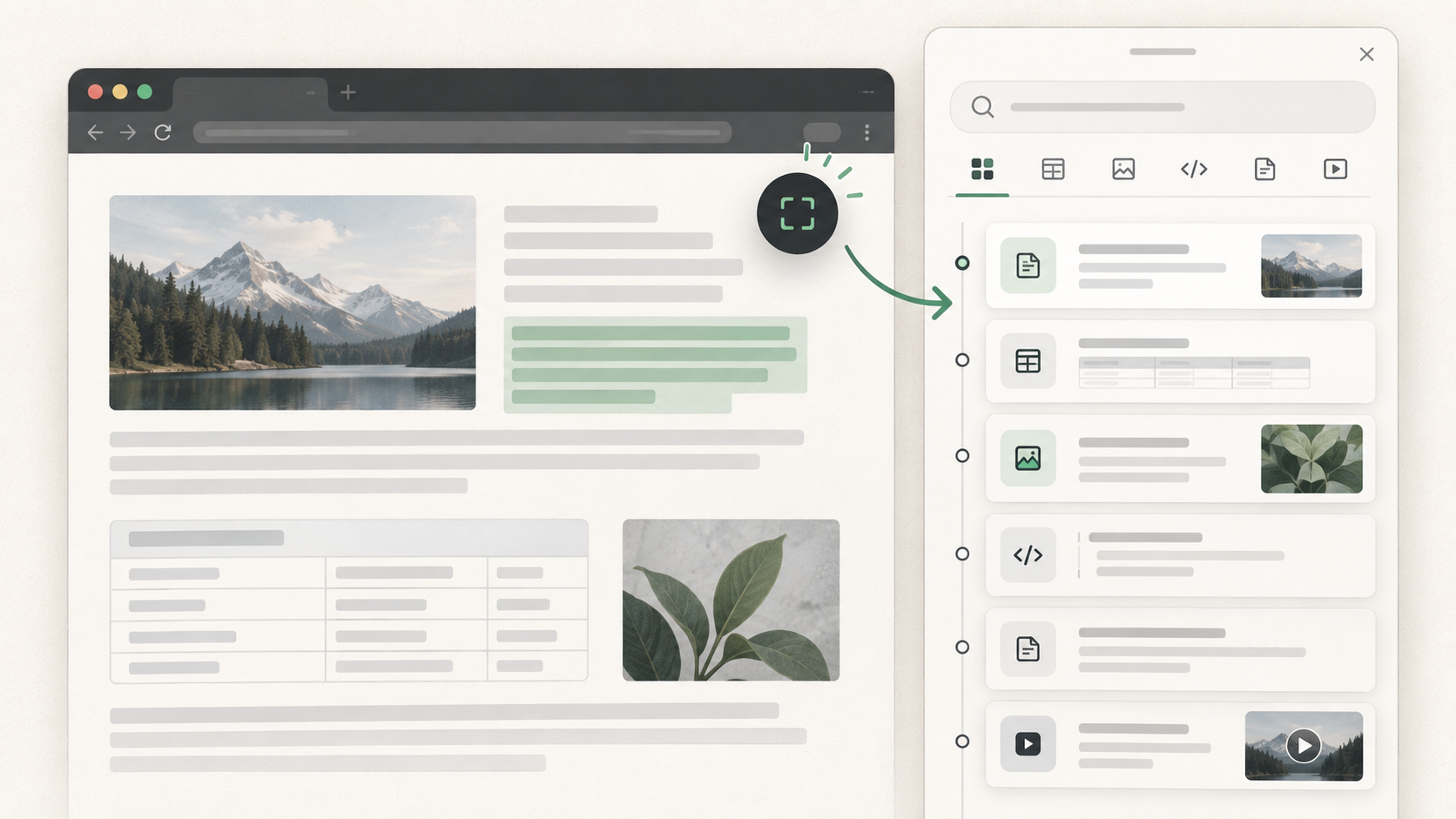
- Refresh the source page, point at the image, code, or article, and press Shift + F.
- Check the highlighted boundary. Choose Stash in the resource toolbar, then wait for the saved confirmation.
- Continue on another page and use a later capture’s AI or download action to process the current resource together with the local collection. If local history is enabled, the original capture can be reopened there separately.
What stash preserves
An image is stored with its captured resource data, while code and article entries keep the selected text and source metadata. Stash is useful for collecting references before a writing or research session; it is not a live bookmark and does not update when the page changes.
Common questions
Why can’t I stash this resource?
The resource type may be disabled, the capture may not have completed, or local storage may be unavailable. Re-enable the type, capture again, and check the save status before leaving the page.
Does stash send the resource to AI?
No. Stashing only saves it locally. Use a later capture’s AI action when you are ready to send the current resource and the local collection as context.
What to remember
Stash is a local collection used by later AI or download actions, not a history browser. Keep the source URL, avoid storing sensitive material longer than necessary, and clear the stash when the review is complete.
Try it on your next table.
Install ShiftTable, refresh your source page, and press Shift + F to begin.
Add to Chrome