 ShiftTable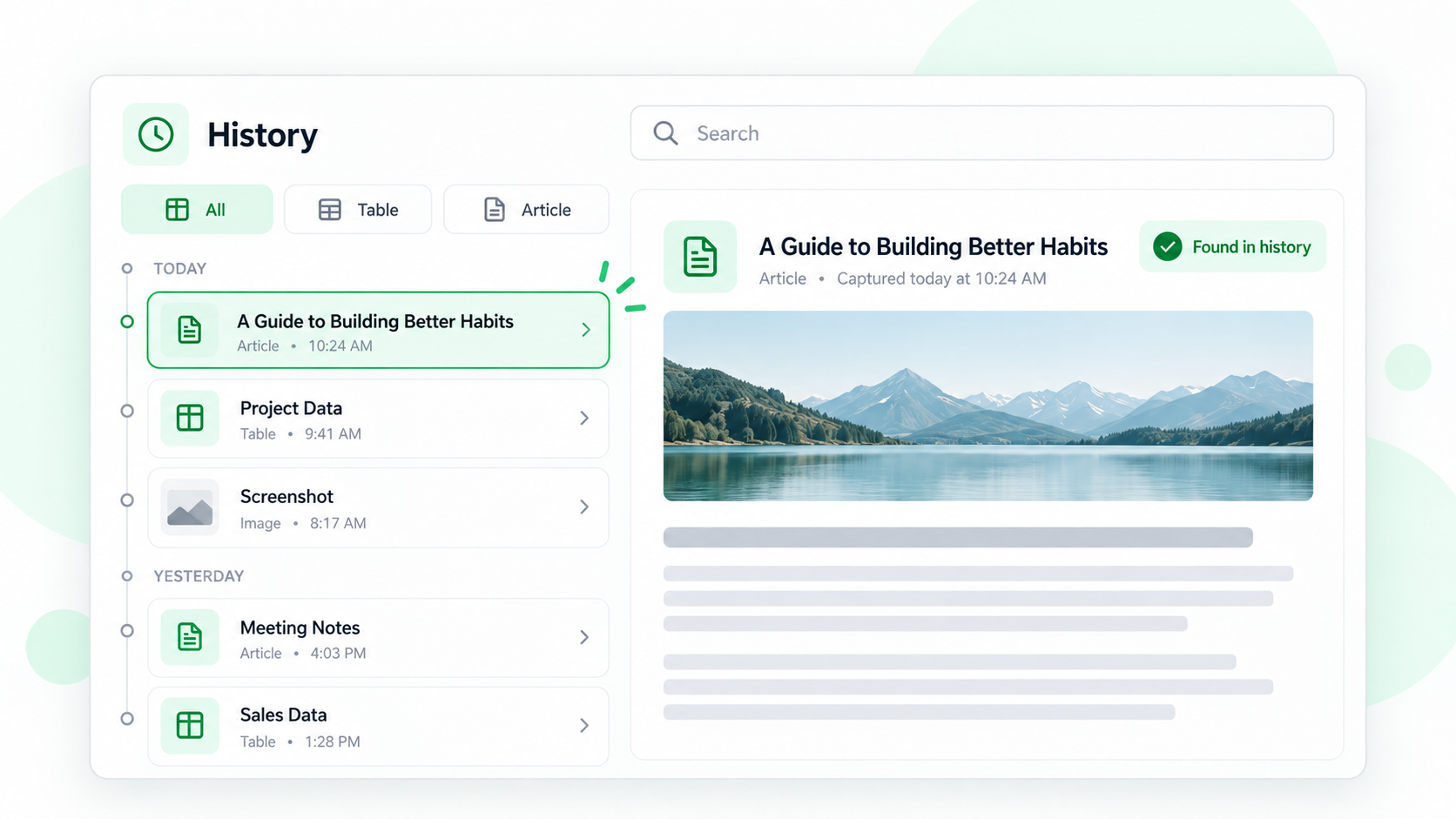
ShiftTable keeps captured resources in a local history panel so you can return to a table or article after leaving its source page. History is useful for recovery and reuse; it is different from the temporary stash used to combine work across pages.
Open and search history
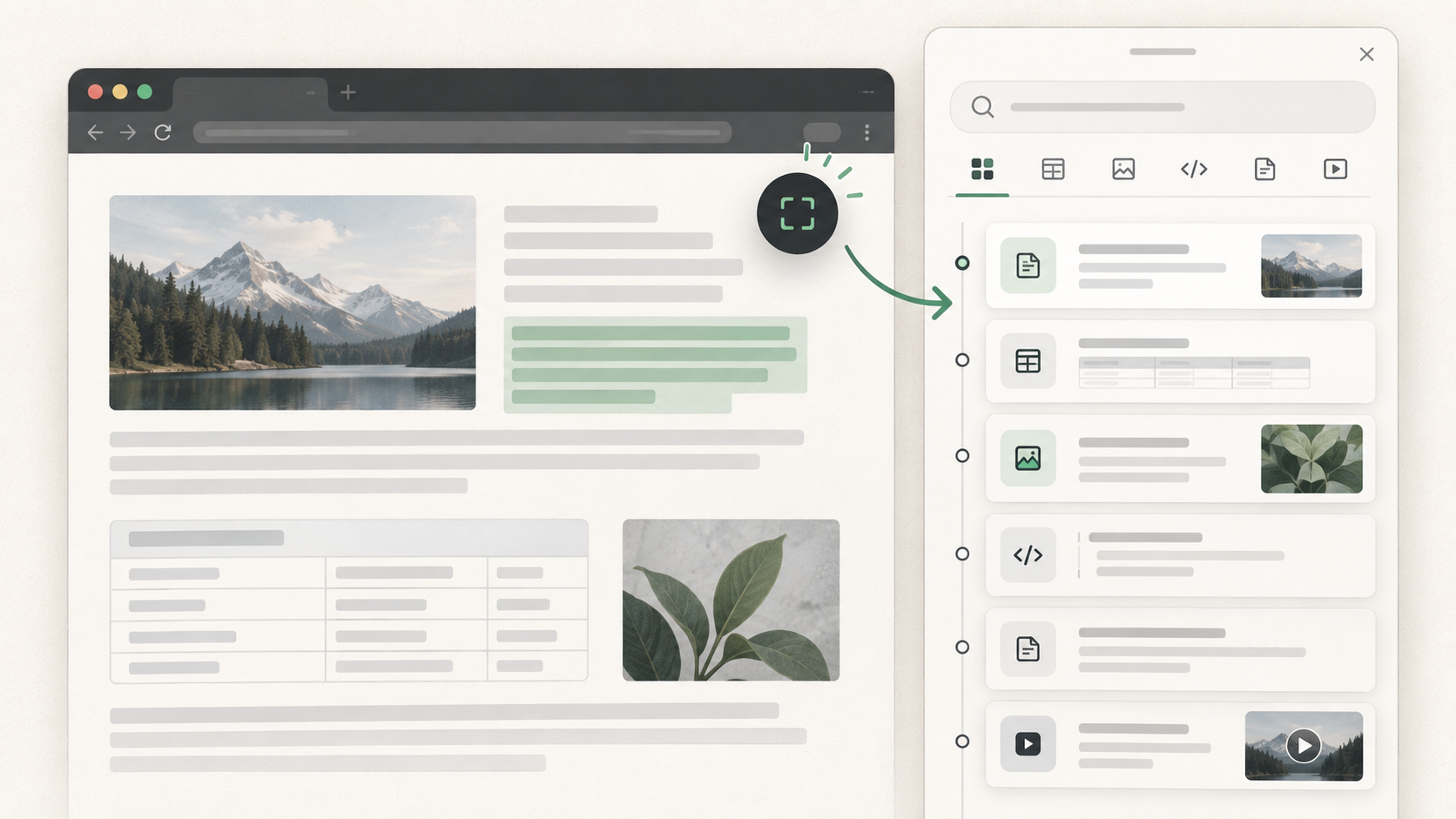
- Show the ShiftTable launcher on a page and open the history view. The history panel contains a search field, resource-type tabs, and a chronological list.
- Search by a title, domain, or another visible piece of metadata. Use the tabs to narrow the list to tables, images, code, articles, or videos.
- Select an item to reuse it in the current workflow. The row also exposes the source page when a source URL was recorded.
- Delete an item only after checking its type, title, and capture date. Deletion requires confirmation and cannot be used as a way to recover the item later.
History versus stash
History records individual captures when local history is enabled. Stash is for collecting compatible captures, such as table segments from several pages, and using them as a group. Finding a table in history does not merge it into a stash or update it when the source page changes.
Common questions
Why is my capture missing?
Check that history saving is enabled in Settings and that the capture finished successfully. Very large files, unsupported resources, storage limits, or a cleared browser profile can prevent recovery. Reopen the source page and capture again if the item is still needed.
Can history search the full captured text?
Search is based on the metadata exposed by the history list, not a general full-text index of every cell or paragraph. Use a distinctive title or domain, then inspect the resource itself.
What to remember
Keep history enabled for recovery, use stash for multi-page collection, and treat deletion as permanent. Sensitive captures should be removed promptly rather than left in browser storage.
Try it on your next table.
Install ShiftTable, refresh your source page, and press Shift + F to begin.
Add to Chrome