 ShiftTable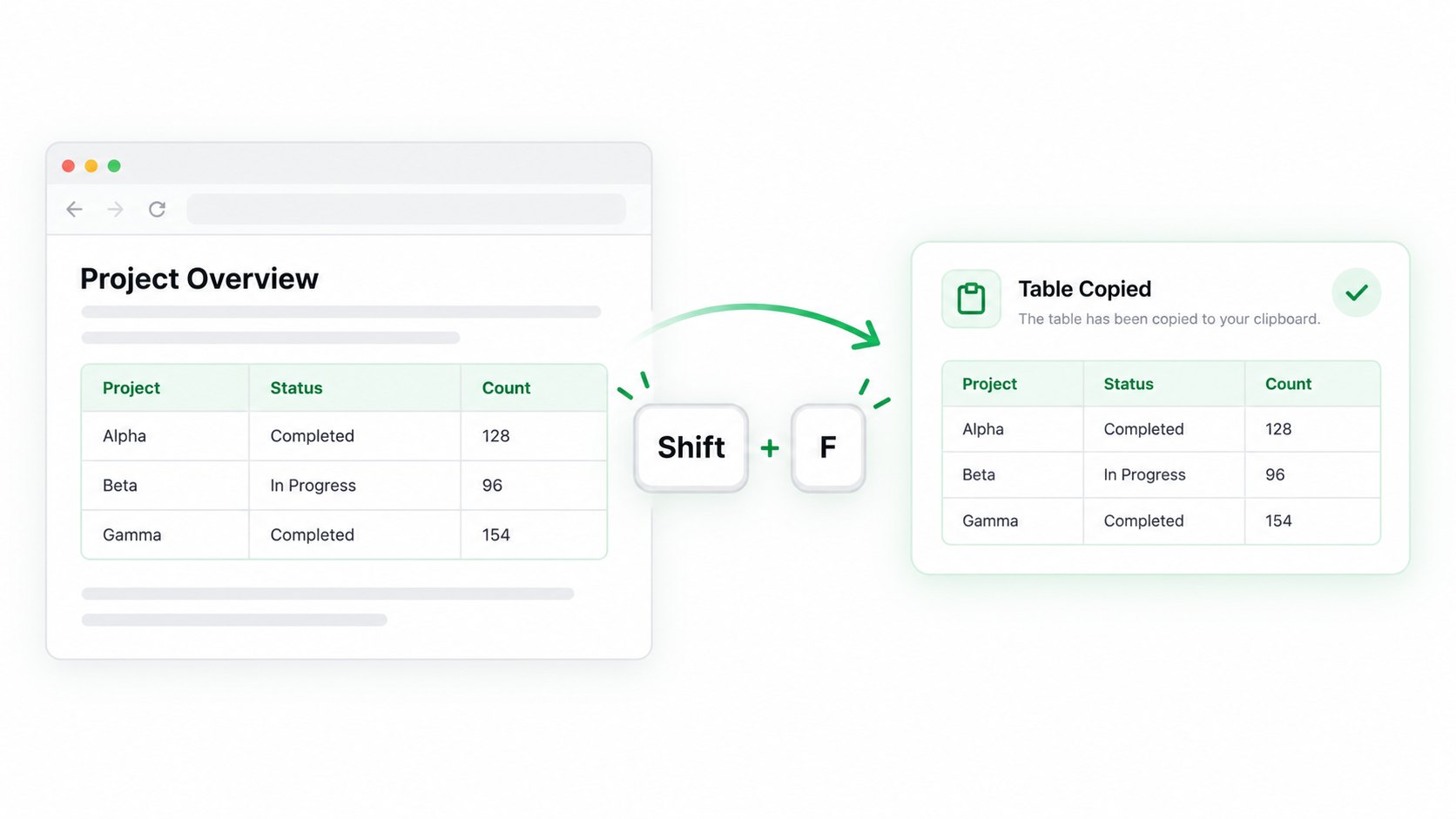
Use the table copy action when you want the captured rows and columns in another application without creating an Excel download. The shortcut only starts the capture; the highlighted boundary determines what reaches the clipboard.
Copy the complete table
- Refresh the page and place the pointer over the table, then press Shift + F.
- Check that the highlight contains the intended header, body, and final visible row.
- Press C or choose Copy in the table toolbar. Paste into a blank area of the destination file first.
- Compare headers, row count, the last record, and numeric formats with the source before sorting or editing.
When to use Spreadsheet instead
Open with F when you need to filter, sort, search, or edit before copying. Use direct Copy for a quick handoff, but do not expect it to repair a table whose visual layout does not match its cell structure.
Common questions
Why are the rows shifted after pasting?
The source may contain merged cells, nested labels, hidden rows, or inconsistent columns. Re-capture the exact data region and inspect the first, middle, and last records.
What to remember
Copy transfers the capture; it does not validate or clean it. Check the destination before using the table in a report.
Try it on your next table.
Install ShiftTable, refresh your source page, and press Shift + F to begin.
Add to Chrome