 ShiftTable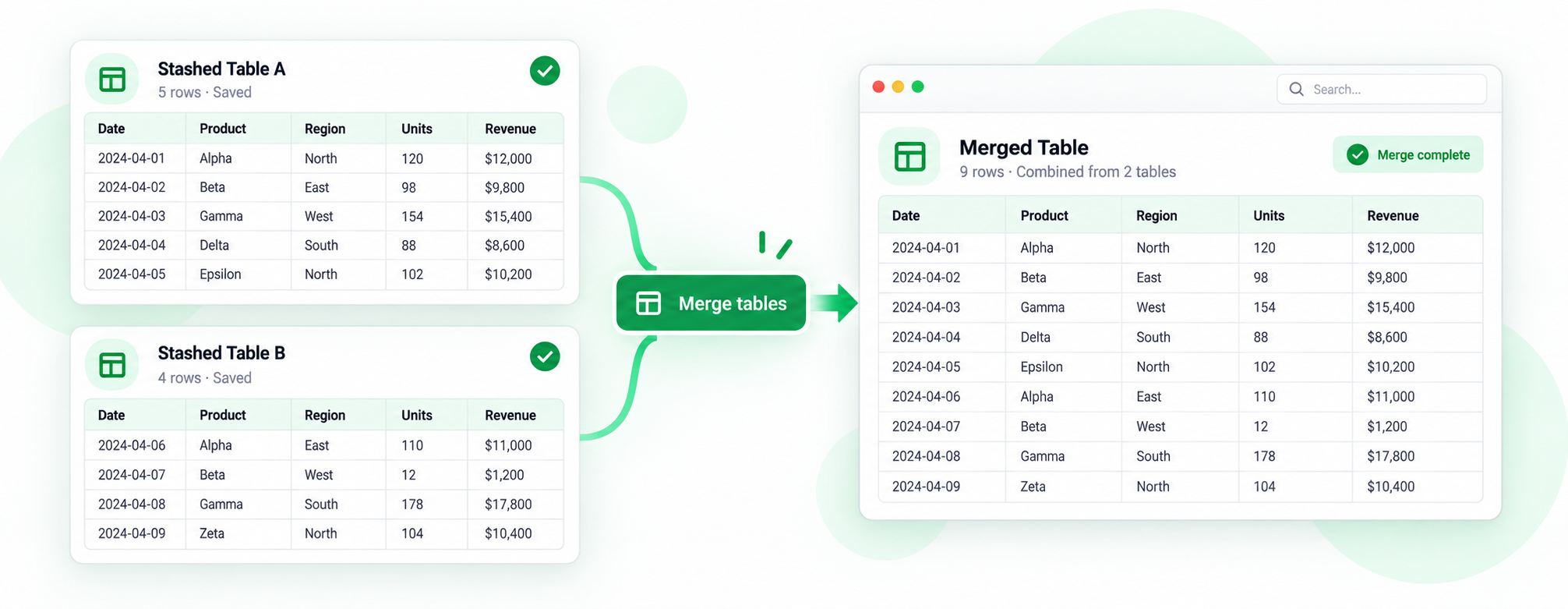
Stashing is useful when one report is split across pages of the same site or when you need to compare similar tables before editing them together. The table stash is isolated to the current tab, frame, and site origin and expires after about 30 minutes of inactivity; it cannot combine captures from other tabs or origins. The captures must also use the same columns, order, and row definition.
Build a clean combined table
- On the first page, hover over the table and press Shift + F. Confirm the header and data range, then choose the stash action.
- Repeat in the same tab and site origin. Record the page number or source URL as you go; do not assume the site’s visual order is the data order.
- Open the stashed group in Spreadsheet. Compare headers, column count, date formats, and the first data row from every capture.
- Remove repeated headers, navigation rows, subtotal lines, and obvious duplicate records before analysis.
- Sort or filter the combined result, then export it as XLSX only after checking the first and last row from each source page.
When should captures stay separate?
Keep them separate when columns changed between pages, one page is a summary, or the site applies a different filter. Combining unlike tables makes a neat-looking sheet that is harder to audit than the originals.
Common questions
Why are rows duplicated?
The page range may overlap, or the report may repeat a header or subtotal. Compare source links and stable IDs before deleting anything.
What if one page has fewer columns?
Do not fill missing cells by guessing. Preserve the page boundary, inspect the meaning of the missing field, and merge only after the schema is understood.
What is the final check?
Every merged row should be traceable to a source page, and every column should have the same meaning from top to bottom.
Try it on your next table.
Install ShiftTable, refresh your source page, and press Shift + F to begin.
Add to Chrome