 ShiftTable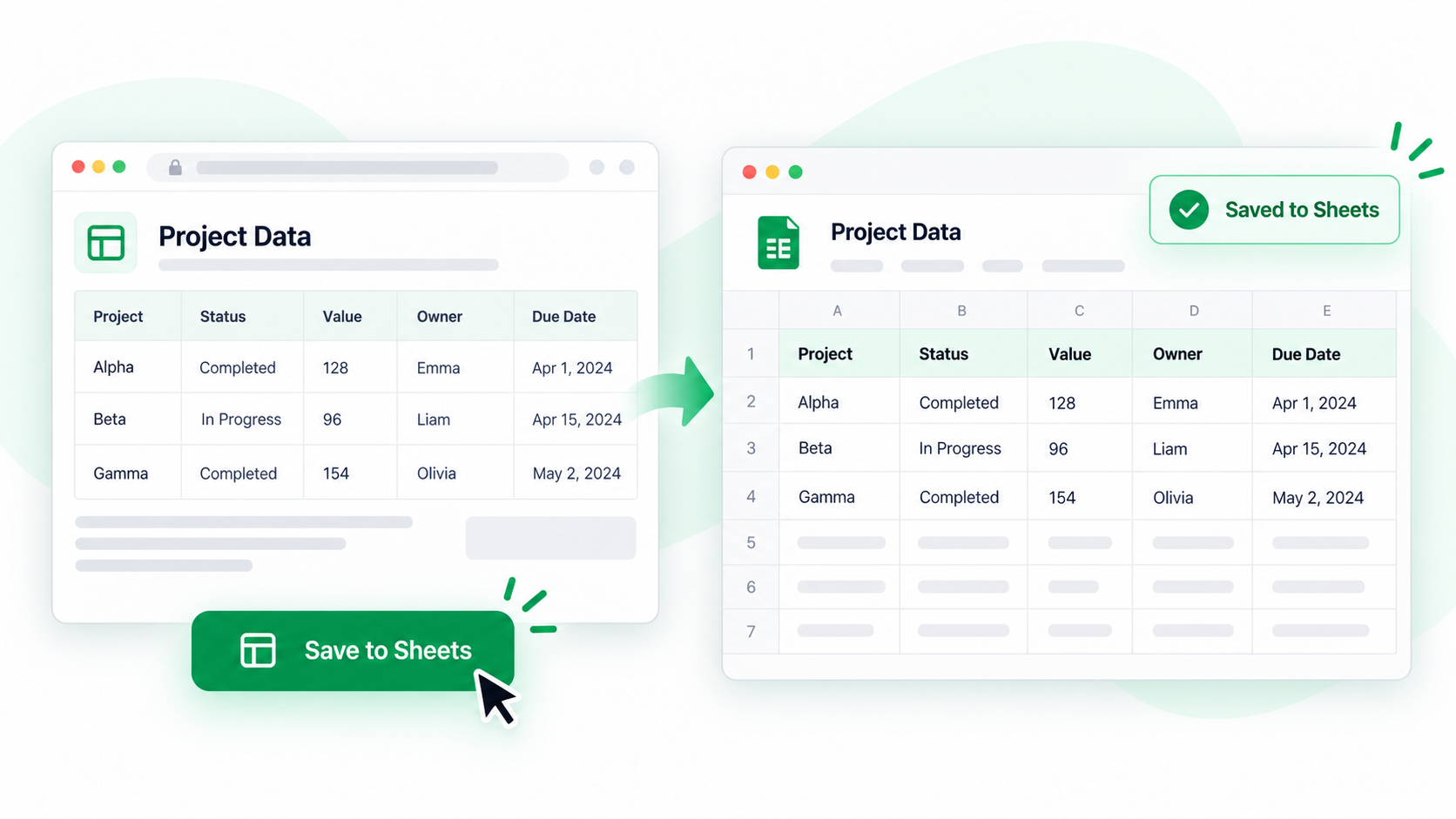
Saving to Google Sheets is the last step of a capture workflow, not a replacement for checking the data. Use Spreadsheet to correct the range and values first, then authorize the Google account that should receive the workbook.
Save a reviewed workbook
- Capture the table with Shift + F and press F to open it in Spreadsheet.
- Remove repeated headers or page furniture, then check dates, amounts, IDs, row count, and column order.
- Use the save-to-Google-Sheets action. On the first use, sign in and grant the requested Drive file permission.
- Choose or confirm the destination and workbook name. Wait for the save to finish before closing the tab.
- Open the resulting sheet and compare its first and last rows with Spreadsheet and the source page.
What authorization means
The integration needs permission to create or access the file it saves. Use the intended Google account and revoke access later from that account’s connected-app settings if the workflow changes.
Common questions
Is the sheet linked to the webpage?
No. It is a saved snapshot. Recapture and save again when the source changes.
Why did the upload contain wrong rows?
The error was likely in the capture or Spreadsheet range. Fix the workbook before saving; do not rely on Google Sheets to guess the intended boundary.
What should I verify after saving?
Check the file name, owner or destination, row and column counts, number formats, and any formulas or images that need special handling.
Try it on your next table.
Install ShiftTable, refresh your source page, and press Shift + F to begin.
Add to Chrome