 ShiftTable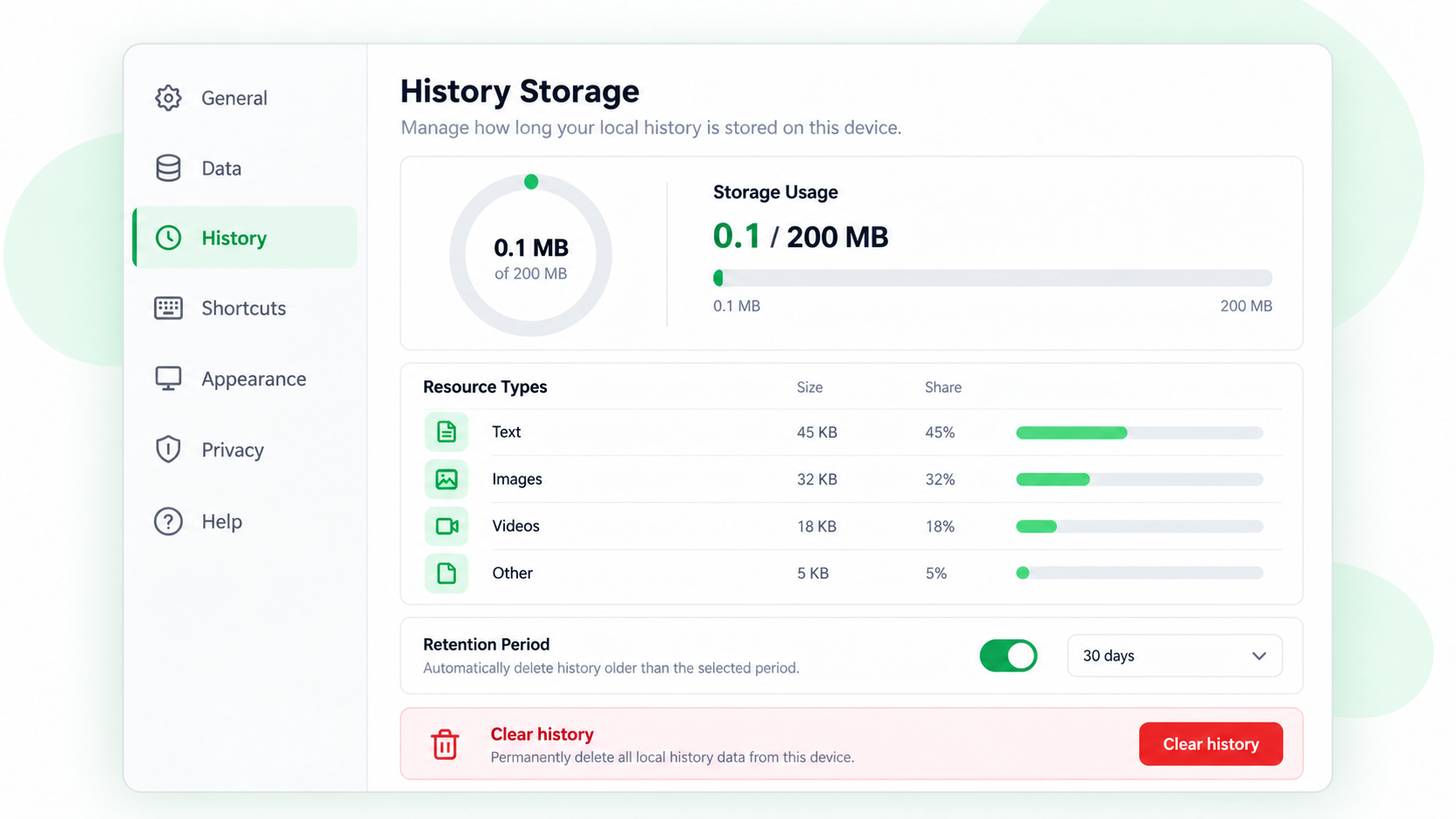
Local history is useful for recovering a capture, but it stores data in the browser. Review the storage settings before collecting large images, code files, or articles, and remove sensitive entries when the task is over.
Control what is saved
- Open ShiftTable Settings and expand Storage.
- Keep Save history enabled when you want completed captures to appear in the history panel. Turn it off before a session that should not leave local records.
- Decide whether the stash should be cleared after use. This setting controls temporary generic resources; it is separate from the history switch.
- Open the history panel to review the item count and approximate storage usage. Use each item’s delete control for targeted cleanup.
Storage is local, not a backup
History is held in browser storage and is tied to the browser profile. Clearing site or extension data, changing profiles, or reaching the available quota can affect recovery. A local record is also not a live connection to its source page: deleting it does not delete the source, and keeping it does not refresh it.
Common questions
Should I turn history off to free space?
Turn it off when you do not want new captures saved, then delete existing large or sensitive entries. Disabling the switch alone does not remove records already stored.
Why did a save fail?
Check the resource size, available browser storage, and whether the capture type is supported. A failed save should not be treated as a reliable backup; recapture the resource after resolving the issue.
What to remember
Use history for short-term recovery, stash only what you plan to revisit, and clean up deliberately. Privacy and storage decisions belong in Settings before the capture, not after an unexpected save.
Try it on your next table.
Install ShiftTable, refresh your source page, and press Shift + F to begin.
Add to Chrome